Windows download, SmartScreen, and antivirus warnings
RGBJunkie is downloaded from rgbjunkie.com. Because we are an independent project and each new version is fresh on the web, Microsoft Edge, Google Chrome, and Windows SmartScreen may warn that the file is not commonly downloaded or that the publisher is unknown. Windows Security (Microsoft Defender) or another antivirus may also quarantine RGBJunkie the first few days a new version is out. That does not mean the file is infected — it usually means the build is new and has not built up reputation yet.
Always download from our official page (or an in-app update from rgbjunkie.com). If you got the installer somewhere else, do not continue.
1. Browser download warning (Edge / Chrome)
After you click Download for Windows, the download may finish with a yellow shield and a message like:
RGBJunkie_…_x64-setup.exe isn’t commonly downloaded. Make sure you trust … before you open it.
What to do:
- Open Downloads in your browser (Ctrl+J in Microsoft Edge).
- Find RGBJunkie_…_x64-setup.exe.
- Click the ⋯ (More actions) menu on that row.
- Choose Keep (not Delete).
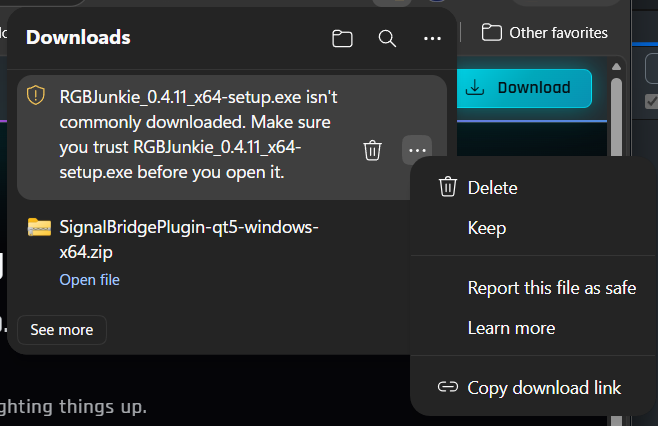 Edge Downloads menu with Keep option
If Edge opens a larger SmartScreen panel for the download itself, click the arrow on Delete and choose Keep anyway.
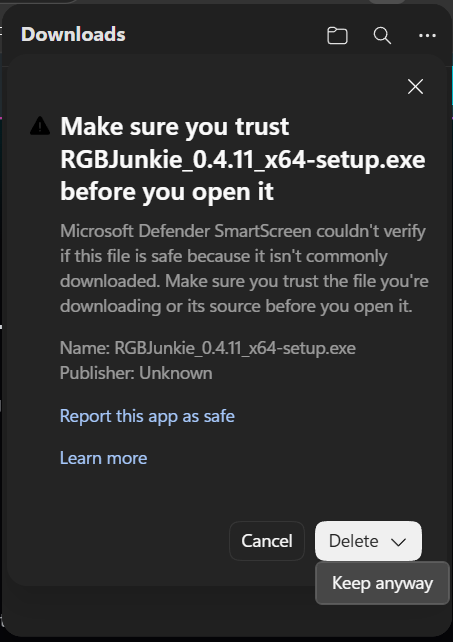 SmartScreen download panel with Keep anyway
You can also use Report this file as safe if you want to help Microsoft learn the file — optional, not required to install.
2. Windows SmartScreen when you run the installer
When you double-click the saved setup.exe, Windows may show a blue SmartScreen window:
Windows protected your PC or Microsoft Defender SmartScreen couldn’t verify if this file is safe
What to do:
- Click More info (if you only see a short message).
- Click Run anyway.
RGBJunkie’s installer needs administrator access to control USB lighting on many PCs. That is expected.
3. Portable ZIP
If you use the Portable ZIP instead of the installer:
- Unzip the folder (you may see the same browser warning on the
.zip— use Keep there too). - Run RGBJunkie.exe inside the folder.
- Apply the same More info → Run anyway steps if SmartScreen appears.
4. Windows Security (Defender) says it found a threat
Some people see Windows Security quarantine RGBJunkie a day or two after a new version comes out, with a name such as Trojan:Win32/Bearfoos.A!ml. This is a false alarm, not a real infection.
The !ml at the end means Defender's machine-learning guess stepped in, not a match against known malware. New, independent apps that are not yet code-signed — and that legitimately talk to your USB lighting, need administrator access, and close other RGB software — can trip that guess until the build earns reputation. RGBJunkie does all of those things for a normal reason: controlling your lights.
If it was quarantined:
- Open Windows Security → Virus & threat protection → Protection history.
- Find the RGBJunkie item, open Actions, and choose Restore.
- If Windows keeps removing it, add an exclusion: Virus & threat protection → Manage settings → Exclusions → Add or remove exclusions → Add an exclusion → Folder, then pick
C:\Program Files\RGBJunkie. - Reinstall from rgbjunkie.com if any files were deleted, then run RGBJunkie again.
Only do this for RGBJunkie files you downloaded from our official page. We also report each release to Microsoft so the false alarm clears on its own — if you update in a few days, the warning usually stops.
Other antivirus (Norton, McAfee, Avast, Bitdefender, etc.): the steps have different names, but the idea is the same — Restore the file from quarantine and add C:\Program Files\RGBJunkie (or your Portable ZIP folder) to that program's allowed / exclusions list.
Still stuck?
- Confirm the file name looks like
RGBJunkie_0.4.11…_x64-setup.exe(or-rc.1for a release candidate) and came from rgbjunkie.com. - Try another browser, or download the Portable ZIP from the same page.
- See Quick start for install steps after the file is saved.
- If the app installs but something else fails, use Send a support report from Settings → Help.